Start with what you see.
Grab a region, a window, or your entire screen. Capture a scrolling page in Safari or Chrome, set a short delay, open an image, or paste from your clipboard.
⌃⌥2Region capture
Screenshot annotation for Mac
Capture your screen, add a little clarity, and share. Your editable history stays on your Mac, ready for whatever comes next.
 Available on the Mac App Store
macOS 15 or later · No cloud account required
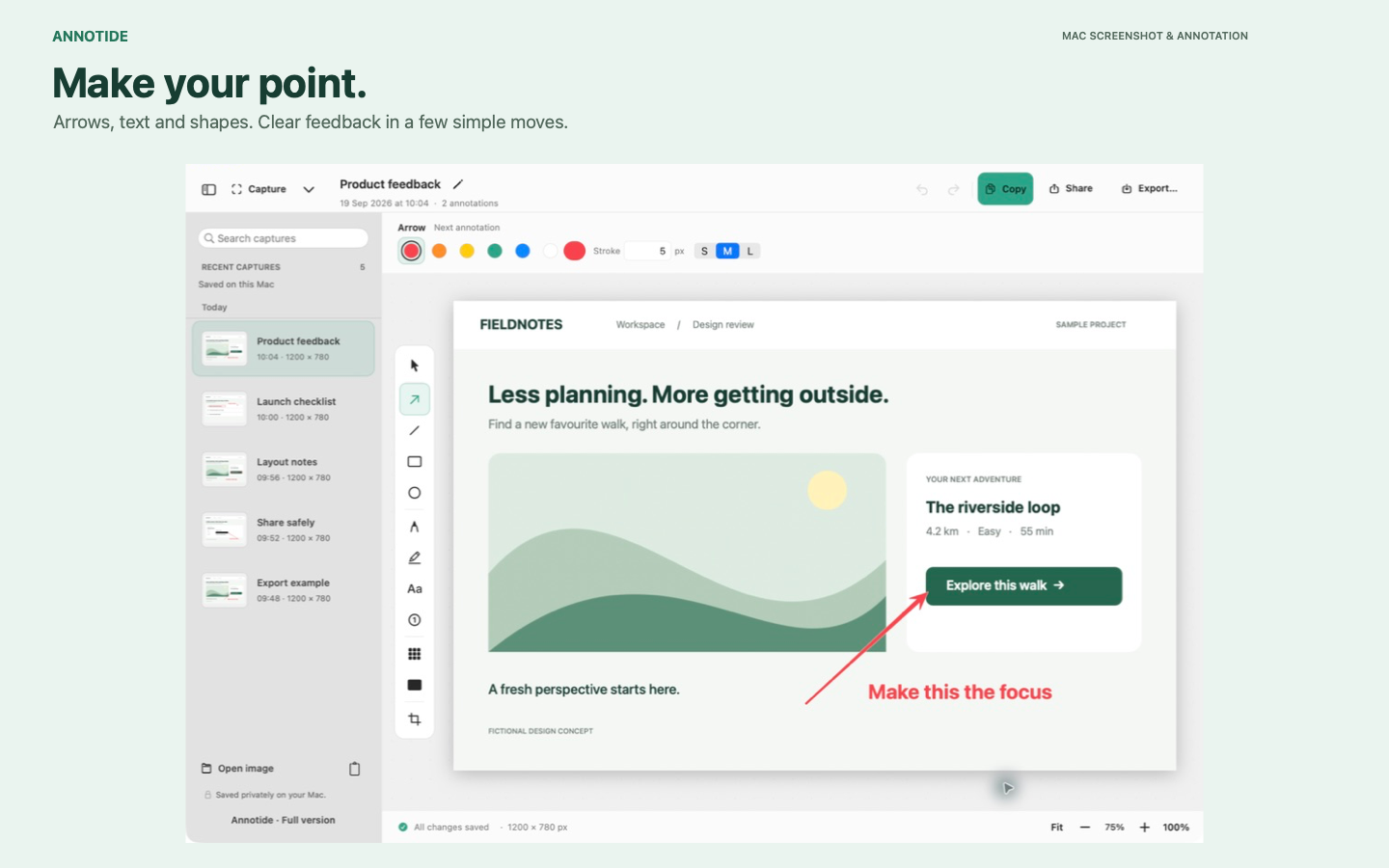
Less explaining. More doing.
A quick piece of feedback. A helpful walkthrough. One detail that makes the whole thing click.
Grab a region, a window, or your entire screen. Capture a scrolling page in Safari or Chrome, set a short delay, open an image, or paste from your clipboard.
Add arrows, text, shapes, highlights, and numbered steps. Adjust exact sizes, crop the image, and undo as you go.
Copy your finished image or export PNG, JPG, TIFF, and PDF. Combine selected captures into a PDF with the page order you choose.
Explore the workflowMore from every capture
New ways to reuse a screenshot without sending your library to a cloud service.
Select several captures, arrange their pages, and export one flattened PDF. Each screenshot becomes a page with its visible edits.
Recognize visible text on your Mac and copy it from a screenshot. Turn on local text indexing only if you want to search words across your library.
Pin a finished capture above other apps as a floating reference while you work. Open up to three, then close them when you are done.
Your work, close at hand
Come back to the thought, not just the image.
Completed work saves automatically in your local library. Search capture titles, or opt in to local text indexing to find words in screenshots. Revisit editable annotations and restore captures from Annotide Trash.
Solid redaction covers sensitive details in flattened exports. Your editable library keeps the originals. Pixelation is a visual effect, so use solid redaction when hiding information.
Simple by design
All the tools, with a full 14-day trial you choose when to start. No subscription. No automatic charge.
One app. One purchase.
After the trial, creating and editing captures requires the one-time unlock. Your saved captures remain available to view, copy, export, share, and delete.
Local pricing is shown in the app.
A few useful details
A Mac running macOS 15 or later. Screen capture requires macOS Screen Recording permission. Annotide captures still images, not audio.
No cloud account is required by Annotide. Your capture library stays locally on your Mac. Apple handles trial and purchase transactions through your Apple Account.
Copy or export a finished image, or use available macOS sharing services. WhatsApp and Teams handoffs copy the image and open the app so you can choose a conversation and paste. Available destinations depend on installed apps.
No. Copy Text and optional text indexing use on-device recognition. The searchable text index stays on your Mac and can be deleted in Text Search Settings.
Visit Annotide Help for shortcuts, permission setup, purchase restoration, and library recovery.